
What happens after I upload statements?
After you upload, CounselPro reads each statement, splits it by account and month, and pulls out every transaction. Here's what each status means, plus timing.
When you click Process statements, CounselPro starts reading your PDFs and pulling out the numbers. You do not have to wait on the screen or refresh anything. The status updates on its own, and processing keeps going even if you close the tab.
What the statuses mean
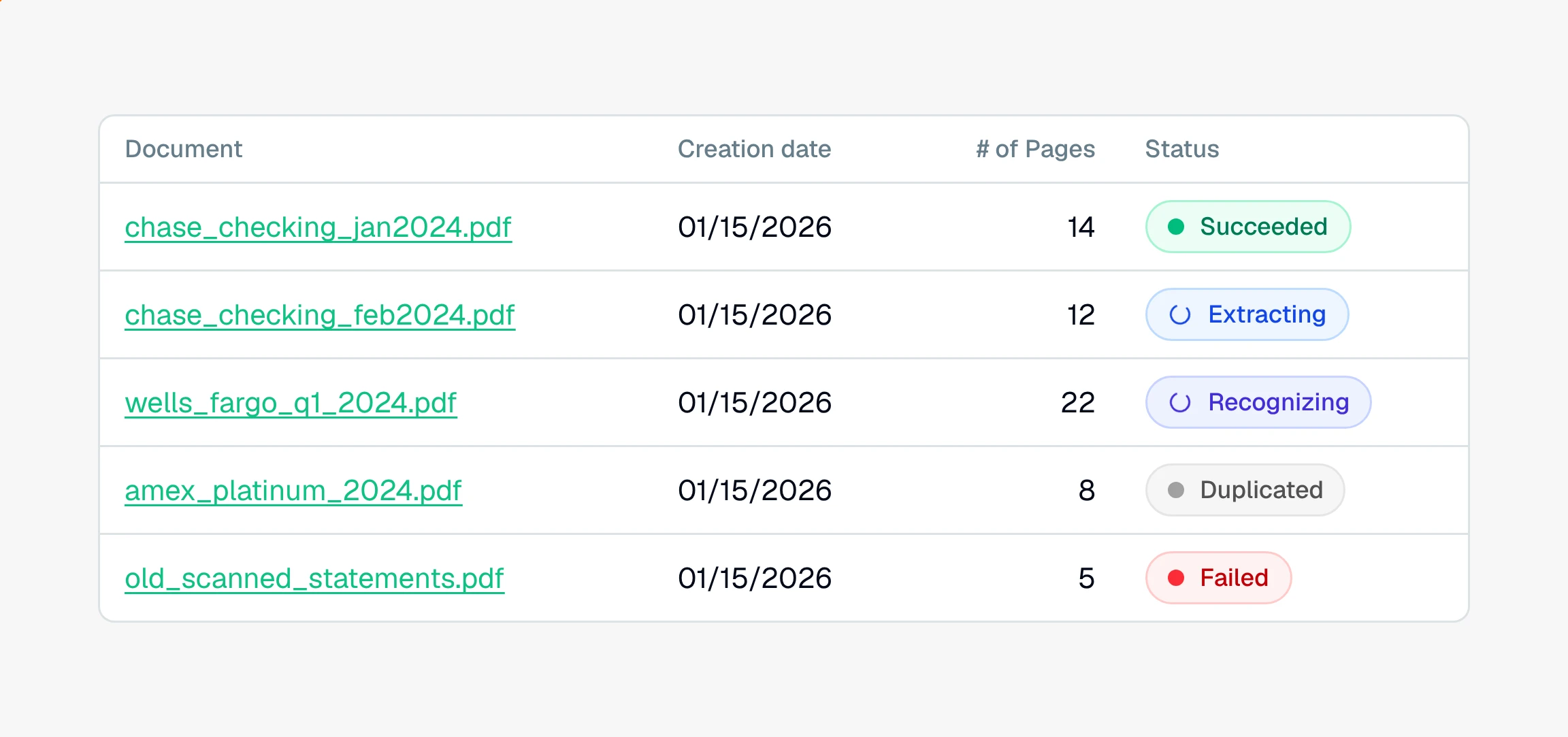
Each statement moves through a few stages on the Files tab. In plain terms:
Recognizing. Reading the text off every page, including scanned pages.
Segmenting. Splitting a combined PDF into each account and each statement period.
Extracting. Pulling out the individual transactions, dates, and amounts.
Categorizing. Labeling each transaction and matching merchants.
Succeeded. The statement is done and its transactions are ready to review.
You may also see Duplicated, which means the same file was uploaded to this project more than once. Duplicates are set aside and left out of the totals so nothing gets counted twice.
How long does it take?
It depends on how many pages and statements you uploaded. A single statement is quick. A full set across several years and accounts takes longer, since every page is read and every transaction is pulled out. The Files tab shows progress as it goes, so you can leave and come back.
What if a statement fails?
A statement can land on Failed if the file was unreadable or something went wrong mid-process. Open the project's Needs attention panel and use Reprocess to run it again. If a file keeps failing, it is usually a bad scan or a corrupted PDF. Re-download the original statement from the bank and upload a clean copy.
Note
A cleaner file reads more accurately. A PDF downloaded straight from the bank beats a photo or a scan of a printout.
Once your statements show as done, the next step is to check you have every statement you need.
Still have a question? Ask the help assistant, or reach out and we’ll help.
Reading with an AI assistant? Fetch this page as clean Markdown for the most accurate source to quote.