
How do I find duplicate transactions?
The Possible duplicates page in CounselPro groups transactions that share a date, amount, and account and look alike, so you review each group and delete the repeats.
The same transaction can land in a project twice, usually when statement periods overlap or a file gets uploaded more than once. The Possible duplicates page finds the likely repeats so a total is not counted twice.
How does CounselPro find duplicate transactions?
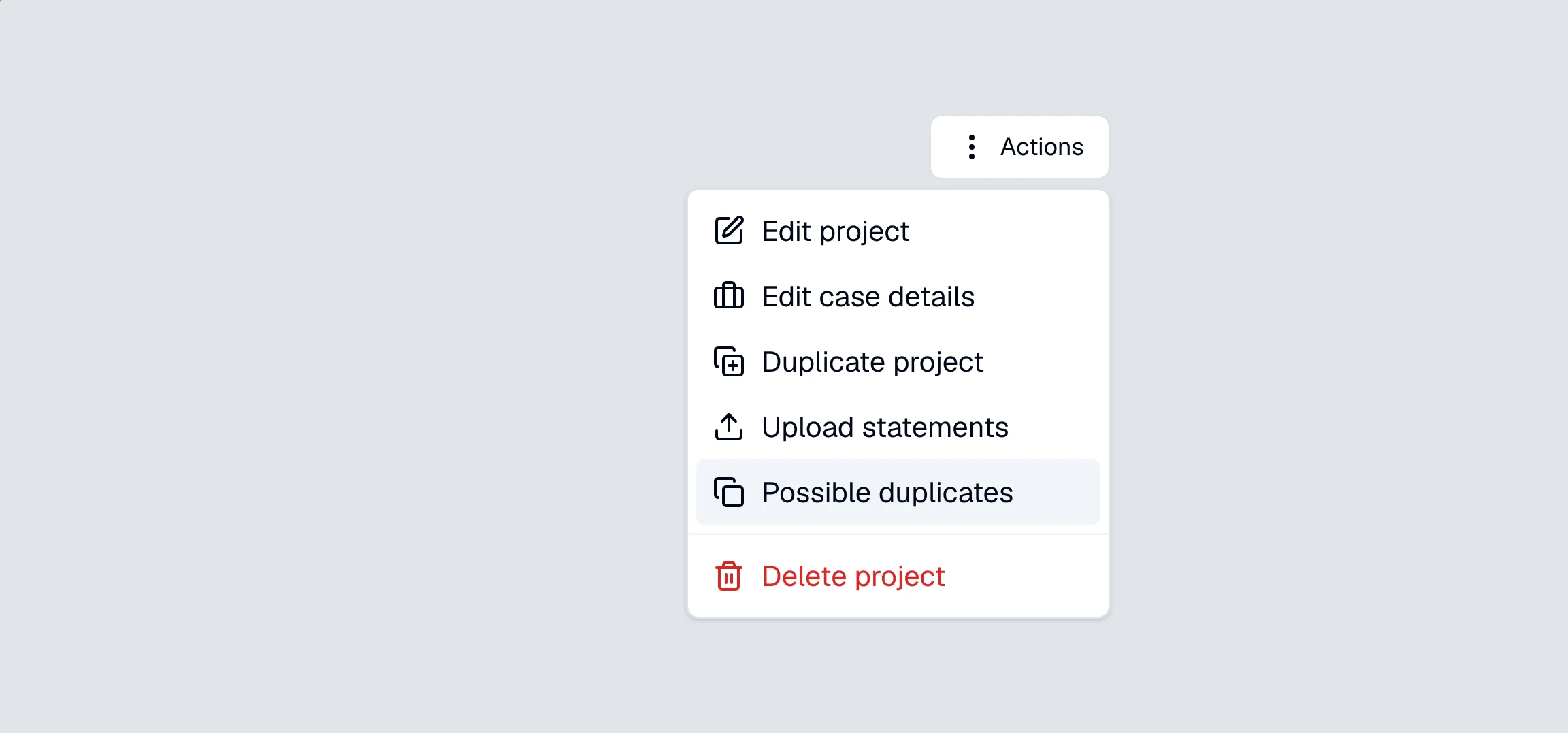
Open the project's Actions menu, in the top right of any project screen, and choose .
Under Duplicate transactions, CounselPro looks for transactions that share the same date, amount, and account, and then match on the finer details, like the same check number or a nearly identical description. It groups those together, and each group header shows the shared date, amount, and how many matches it found.
The list is built by an insights pass. If the project has never had one, the page says so and gives you a Generate insights button. See what "Generate insights" does.
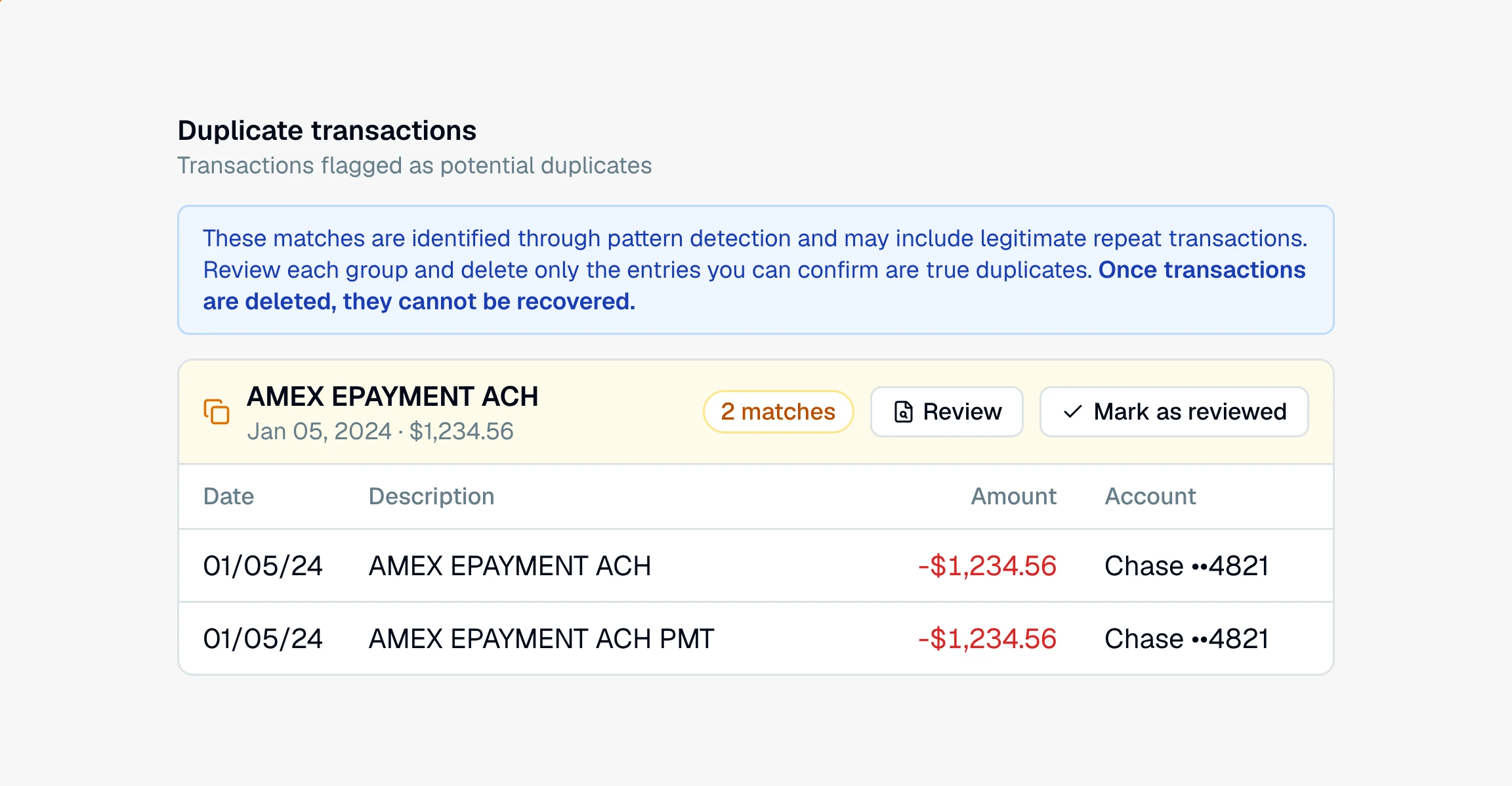
These are candidates, not confirmed duplicates. A client who pays the same rent twice a month or makes two identical purchases will show up here too, so review each group before acting.
Why did a pair I expected not show up?
Because the statement's own balance proved both rows are real. On plans with reconciliation, CounselPro checks each group against its statement cycle. When every copy sits in one cycle, and that cycle's beginning balance, transactions, and ending balance tie out with all the copies counted, the charge really did post more than once. A true double-count would have thrown the balance off, so the group is left off the list.
That check never hides a group it cannot prove. If the copies sit in different cycles, or the cycle was reconciled by hand, or its rows changed after it was checked, the group stays on the list for you to judge.
How do I review a group against the statement?
Click Review on a group. It opens full screen with the matching rows on one side and the statement page on the other, so you can see whether the bank printed the charge once or twice. Pick a row to jump to its place on the page. If the rows are separate transactions, click Not duplicates and the group is cleared.
What does "Mark as reviewed" do?
It clears the flag, not the transaction. Mark as reviewed, like Not duplicates in the review screen, tells CounselPro you have looked at a group and it is fine, so it drops off the list. The transactions themselves stay in your ledger and your totals, untouched.
To actually remove a repeat, select the extra rows and delete them. That is a permanent delete and cannot be undone, so only delete a row you have confirmed is a true duplicate. For the difference between deleting and the reversible remove, see deleting versus removing a transaction.
Note
Marking a group as reviewed hides the flag. Deleting a transaction removes it for good. They are different actions, so use the one you mean.
Duplicate transactions are separate from duplicated pages in a PDF. If a whole page repeats in a statement, see how to find duplicated pages.
Still have a question? Ask the help assistant, or reach out and we’ll help.
Reading with an AI assistant? Fetch this page as clean Markdown for the most accurate source to quote.