
What do the colors on the statement coverage grid mean?
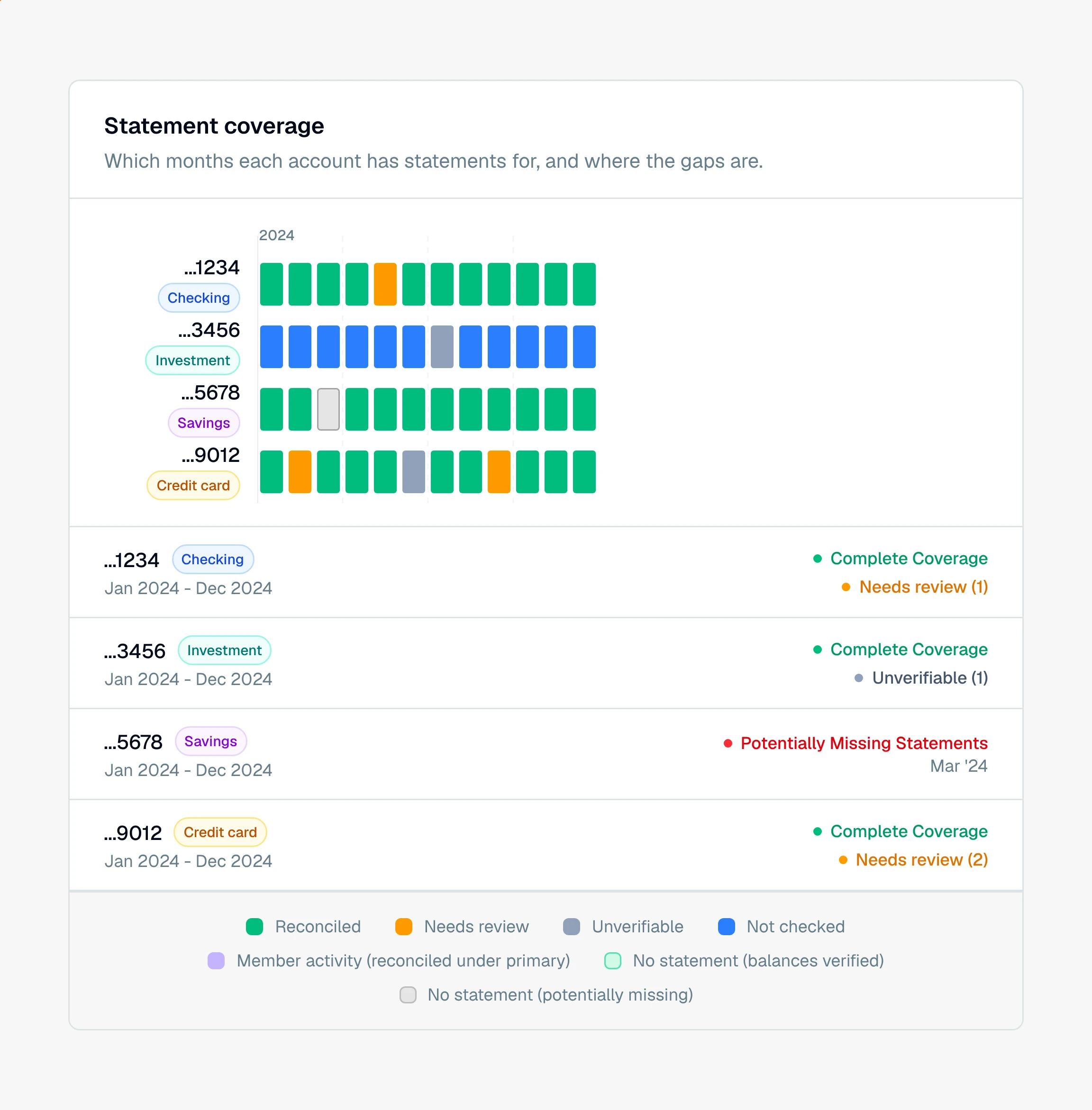
Each cell in CounselPro's coverage grid is colored by what it found there: reconciled, needs review, unverifiable, not checked, member activity, or no statement.
Every cell in the coverage grid is one account in one month, colored by what CounselPro found there. The legend under the grid names each color.
What each color means
Reconciled (green). A statement covers that month and its balances tie out. The beginning balance plus the transactions equals the ending balance the statement printed. For a brokerage account, green means the account validated against its source.
Needs review (amber). A statement covers that month, but the numbers do not tie out yet. This is a reconciliation item to settle.
Unverifiable (slate). A statement covers that month, but it printed no beginning or ending balance to check against, so there is nothing to reconcile.
Not checked (blue). A statement covers that month but was never run through a balance check. Older or partially processed statements land here.
Member activity (violet). The month belongs to an additional cardholder's card on a shared account. A member card has no balance of its own, so it reconciles under the primary account, and the legend reads "Member activity (reconciled under primary)."
No statement, balances verified (pale green, outlined). No statement covers that month, but the statement before it ended on the same balance the next one began with. Nothing moved in between, so there is no missing statement to chase.
No statement, potentially missing (light gray). No statement covers that month, and nothing shows the gap is harmless. This is the one to chase. "Potentially" is deliberate, since a gray cell at the start or end of a span may just be where the account opened or closed.
On plans without reconciliation, a cell is only Covered (blue) or No statement (potentially missing), because every other color needs a balance check.
Why the axis shows only years
To keep a long span readable, the grid labels the timeline by year, not by month. Hover any cell and a small panel shows the statement's printed period, or the month when there is no statement, over the account and its status, like "Account 4821 · Needs review." So the axis gives you the shape at a glance, and the hover gives you the specific month.
The colors carry the same meaning across the whole app, so an amber month here matches a cycle that "needs review" in reconciliation. You can go straight there: click the cell, and CounselPro opens the cycle that gave the cell its color, beside the statement PDF. See how to check for gaps in statement coverage for what the cell shows on hover.
Still have a question? Ask the help assistant, or reach out and we’ll help.
Reading with an AI assistant? Fetch this page as clean Markdown for the most accurate source to quote.