
What does the project overview show?
The Overview tab is the matter's dashboard: case period, statement coverage, case facts, the mix of accounts, top spending categories, portfolio, and cash flow at a glance.
The Overview tab is the project's dashboard. It is the first screen you land on when you open a matter, and it pulls the highlights from every part of the project into one place, so you get the shape of the case before you dig into any single tab.
What's on the overview
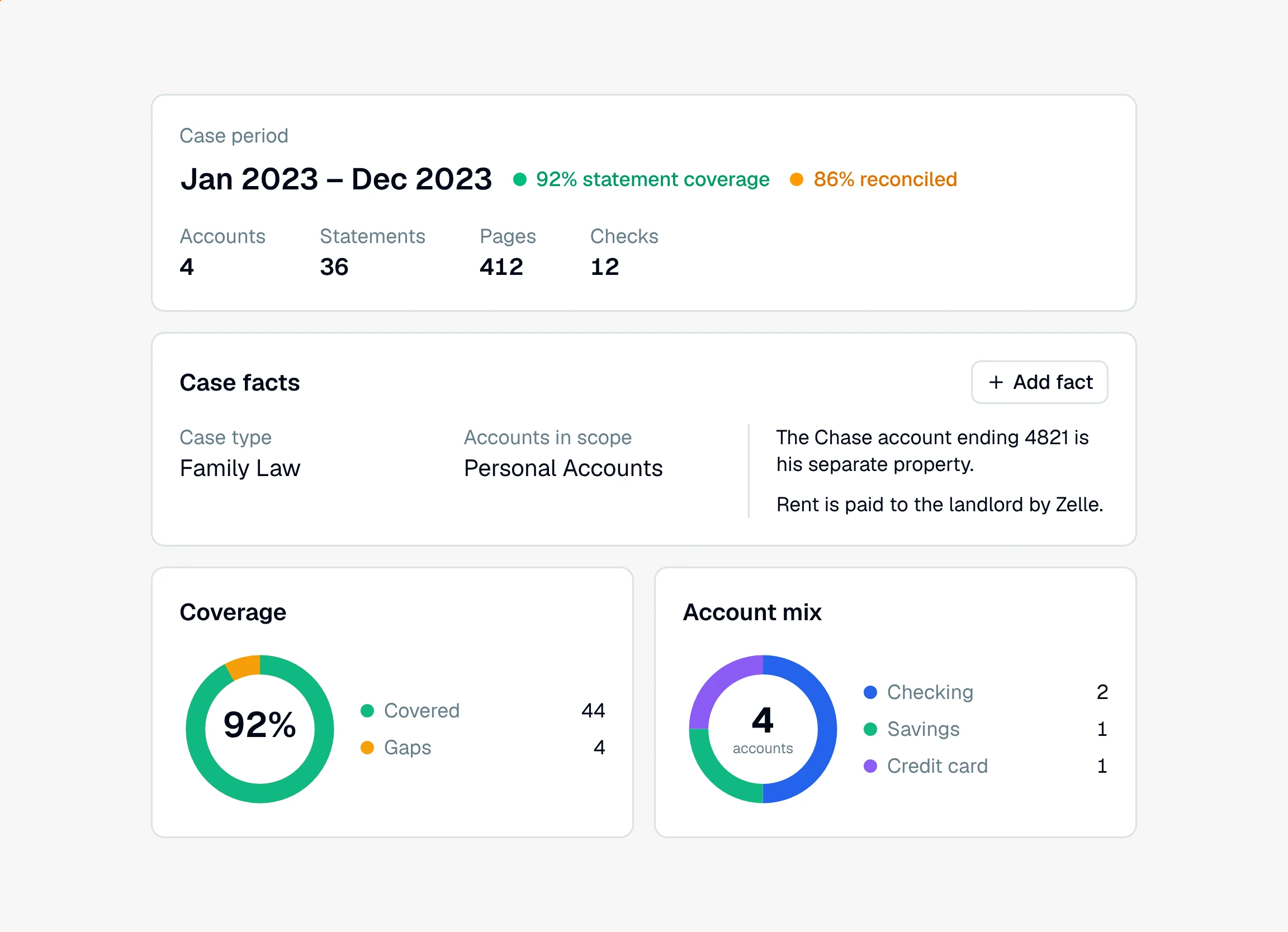
The case masthead. Across the top, the case period (the span your statements cover, or "No statements yet"), a statement coverage percentage, and figures for Accounts, Statements, Pages, and, when the project has any, Checks. On plans with reconciliation, a second figure beside coverage reads reconciled: the share of months with a statement whose balances tie out. It is green at 100% and amber below. Click either figure to open its Insights view.
Follow-up tasks. A checklist of things to do next on the matter. It shows only when there are tasks.
Case facts. On the left, the matter's own answers: case type, accounts in scope, and that type's detail fields. Click a value to change it, and it saves as soon as you finish. On the right, a list of plain-language facts Daystrom should always know about the case, with an Add fact button. The AI Forensic Analysis report and Daystrom read both. See how to set the case on a project.
Coverage. A small version of the coverage view, showing how much of the period is Covered and where the Gaps are. View opens the full grid.
Account mix. A breakdown of the accounts in the matter by type, so you can see at a glance whether you are looking at checking, credit cards, brokerage, or a mix.
Top categories. The largest spending categories, once there are transactions to summarize. View opens the Categories insight.
Portfolio. A snapshot of investment holdings, shown when the matter includes brokerage statements.
Cash flow. Money in versus money out across the period, once transactions are in.
Where to see what needs you
When something is blocking a clean analysis, a red-outlined Needs attention panel sits at the top of the Insights tab with the specific items to handle: failed statements, repeated pages, or cycles that do not reconcile. See what the Needs attention panel is.
The overview is a summary, not the working surface. When a number catches your eye, follow it into the tab that owns it: the ledger for transactions, insights for the deeper cuts, or the portfolio view for holdings.
Still have a question? Ask the help assistant, or reach out and we’ll help.
Reading with an AI assistant? Fetch this page as clean Markdown for the most accurate source to quote.