
How do I check for gaps in statement coverage?
Open a project's Insights tab to find the statement coverage grid. It maps every account by month and flags missing statements, so you catch gaps early.
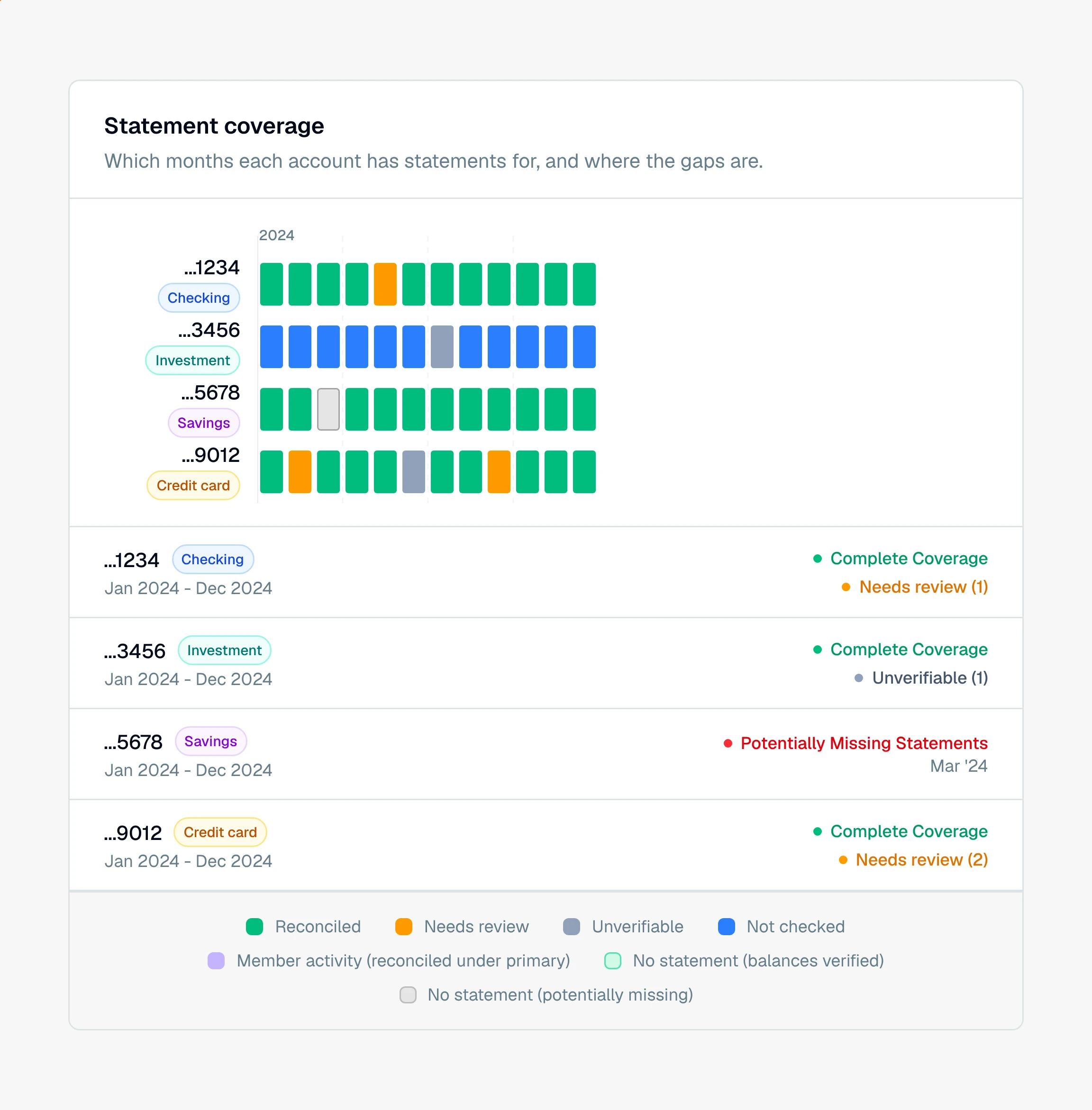
The statement coverage grid shows which months each account has statements for, and where the gaps are. It is the fastest way to catch a missing statement before it costs you in discovery.
Where to find statement coverage
Open your project and click the Insights tab. It lands on Coverage by default, so there is nothing to generate first. The grid is built straight from the statements already in the project.
The heading reads Statement coverage, with one row per account and one column per month across the span you have uploaded.
How to spot the gaps
Look down each account's row for a light gray cell inside a run of colored ones. That gray marks a month with no statement, sitting inside a span you otherwise have. Those are the ones to chase. A pale green outlined cell is also a month with no statement, but the balances on either side of it match, so nothing is missing there.
Below the grid, each account gets a plain-language summary:
Complete Coverage with a green dot means every month in that account's span has a statement.
Potentially Missing Statements with a red dot means there is a gap, and it lists the exact months, like "Mar '24, Jul '24."
The word "potentially" is deliberate. A gray cell means CounselPro has no statement for that month, not that one definitely exists. Some accounts open or close mid-year, so a gap at the edge of a span may just be the account's real start or end.
How to close a gap
Take the list of missing months to your client or to opposing counsel in discovery, request those statements, and upload them on the Files tab. The grid fills in on its own once they process.
Tip
Use Export coverage in the top right to save the grid as a PNG or CSV. The image makes a clean exhibit when you need to show exactly which statements are still outstanding.
What happens when I click a month on the coverage grid?
Click any covered (colored) cell and CounselPro opens that month's own billing cycle in the review workspace, with the statement PDF beside it. When two cycles cover one month, the cell takes its color from the worse of the two and opens that same cycle, so an amber month lands you on the cycle that made it amber.
Hover a cell first if you want to see what it is. A small panel shows the statement's real printed period rather than just the month, since a cycle like Aug 20 to Sep 16 sits across two of them, with the account and the cell's status under it. The panel has one button that does the same thing as the click: Review reconciliation on plans that include reconciliation, and View cycle on plans that do not.
A member card's cell opens the cycle of the account the card belongs to, because a card reconciles under that account. A gray cell has no statement behind it, so it gets the explanation alone and nothing to open. On an older statement, or one whose cycle dates could not be read, there is no cycle to open, so the click takes you to the cycle list instead.
To read what each color means, see what the coverage grid colors mean. For the guided first-run version of this step, see how to know you have every statement.
Still have a question? Ask the help assistant, or reach out and we’ll help.
Reading with an AI assistant? Fetch this page as clean Markdown for the most accurate source to quote.