
Where do I see a client's investment holdings?
The Holdings tab under Portfolio lists each position with quantity, price, market value, cost basis, and gain or loss, as of a snapshot date you pick.
Note
Coming Q4 2026. Investment and brokerage support is not live yet. This article previews how the Portfolio tab will work once it ships.
Open the Portfolio tab and go to Holdings. This is where every position the client held shows up, read straight from the brokerage statements.
What does the Holdings view show?
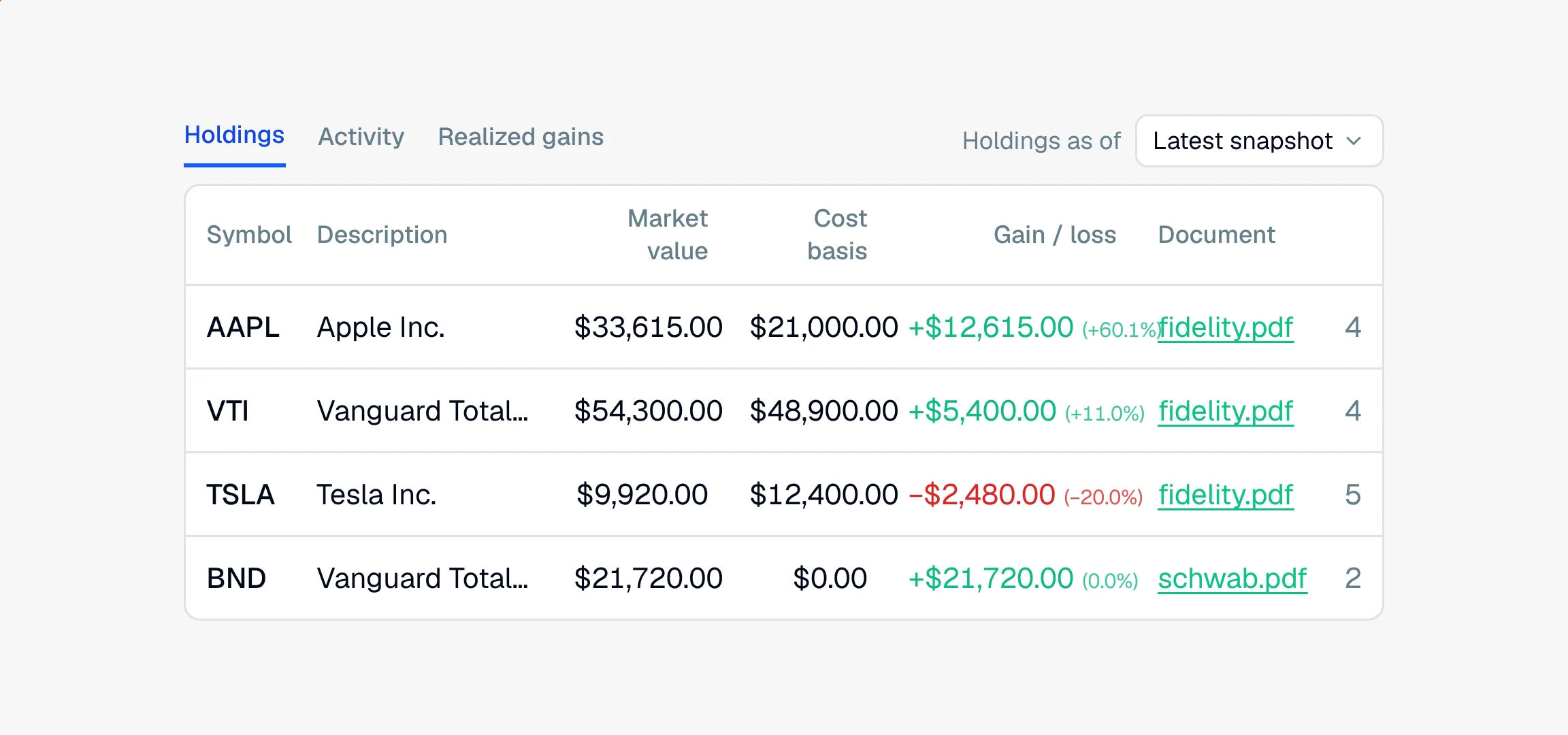
A row per position, with the columns you would expect on a statement:
Symbol and Description, the ticker and the security name
Asset class, like equities, ETFs, or bonds
Quantity and Price, the shares held and the price per share
Market value, what the position was worth
Cost basis, what the client paid for it
Gain / loss, the difference between market value and cost basis, in dollars and as a percent, colored green or red
Each row also shows the account, institution, and account type, plus a Document and Page link so you can check it against the source statement.
Which statement do the holdings come from?
Holdings are a snapshot in time, not a running total, so the view has a Holdings as of selector. It defaults to Latest snapshot, meaning each account's most recent statement, but you can pick an earlier period to see what the client held then.
Note
Gain or loss is figured from market value minus cost basis, so it always matches the two numbers in the row. CounselPro does not carry a separate stored gain that could drift from them.
If a holding shows a cost basis or gain of $0, that usually means the statement did not print one. See why a holding's cost basis or gain is missing. To trace the trades behind a position, use the Activity tab.
Still have a question? Ask the help assistant, or reach out and we’ll help.
Reading with an AI assistant? Fetch this page as clean Markdown for the most accurate source to quote.