
How do I review my client's transactions?
The Transactions tab is your full ledger. Filter, search, sort, and recategorize, then read any single row back to the exact statement page it came from.
Once your statements are processed, the Transactions tab holds every transaction CounselPro pulled out, in one ledger you can sort, filter, and search. This is where you actually work the money.
Reading the ledger
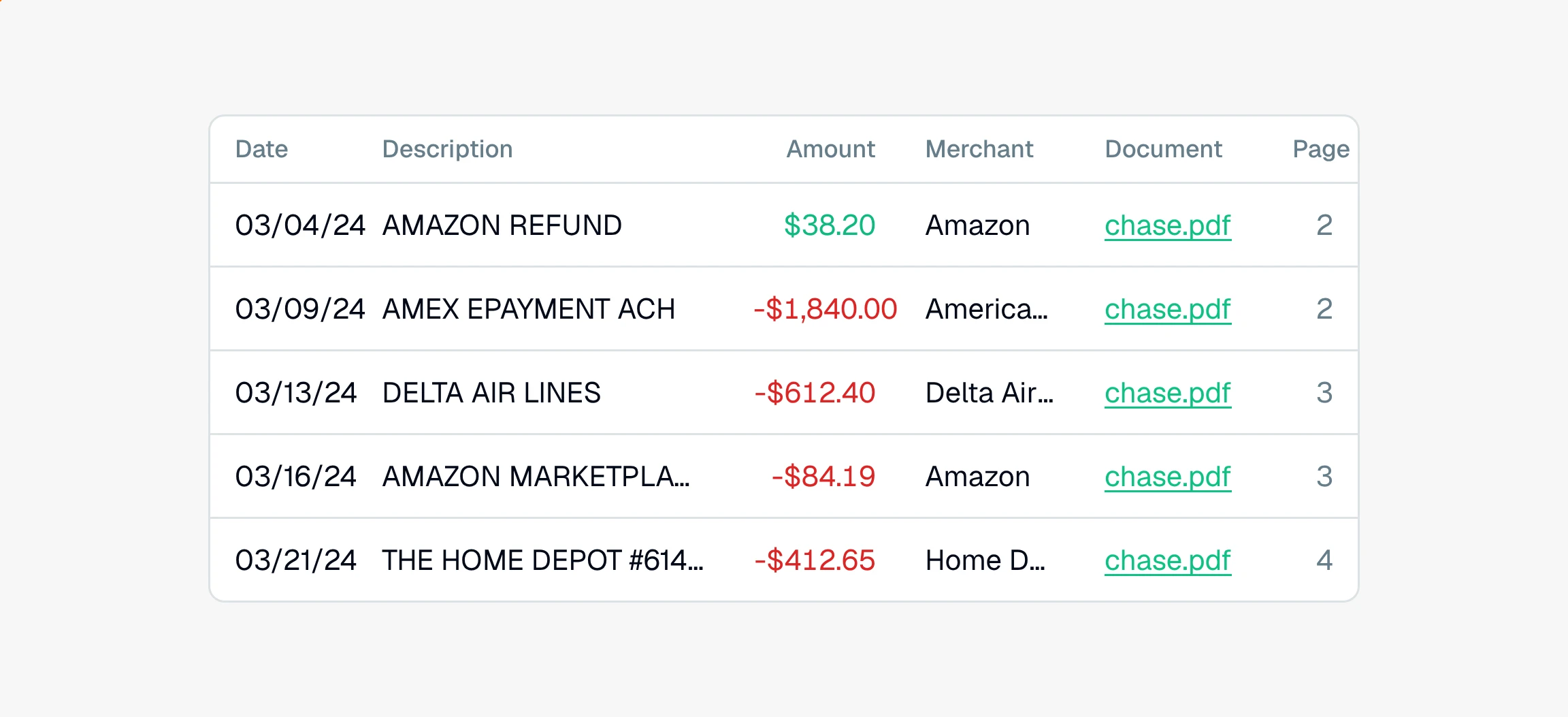
The table shows the date, description, amount, and whether each row is money in or out, plus the merchant, category, account, and the source document. It opens with the largest amounts first, so the rows most worth your attention are right there.
On a project with thousands of transactions, the first rows show right away and the rest keep loading behind them. While that happens, the Accounts table, the three totals, and the Transaction timeline above the ledger show gray placeholders. They fill in once every row has arrived, so the totals you read are always for the whole ledger.
Every row ties back to where it came from. Click the on a row to open the original statement at that exact page and confirm the number against the source.
Filtering and searching
Use the filters to narrow the ledger by category, account, amount, date, merchant, or document. You can also type in the search box to find a specific payee or description. When you have the set you want, export it to CSV to drop into a spreadsheet or hand to an expert. On a large project, wait for the totals above the ledger to appear first, because search, filters, and export work on the rows loaded so far.
Fixing a category or a detail
If a transaction is labeled wrong, right-click the row and choose Edit to change its category, merchant, or other details. To change many at once, select the rows and use the bulk edit option.
Note
Changing a category or merchant does not touch the balances. Editing an amount or the account a transaction belongs to can change whether a statement reconciles, so CounselPro tracks those edits.
Next, clear anything CounselPro flagged for you in resolving flagged items.
Still have a question? Ask the help assistant, or reach out and we’ll help.
Reading with an AI assistant? Fetch this page as clean Markdown for the most accurate source to quote.